

Automated ID data extraction helps organizations read information from identity documents without asking employees or customers to type every detail. Using optical character recognition (OCR), an application can capture text from a passport, national ID card, or driver’s license and place it into useful digital fields.
This can make customer onboarding simpler. It can also reduce repetitive work, prevent some transcription mistakes, and help teams review document information more consistently. However, reading a document is not the same as confirming that it is genuine.
In this guide, you will learn how OCR-based ID processing works, where it provides value, how to implement it, and which accuracy and security checks still matter.
Table of Contents
- What Is Automated ID Data Extraction?
- How Does OCR Extract Data from Identity Documents?
- 7 Smart Ways OCR Reduces Manual Data Entry
- Practical Applications Across Industries
- How to Integrate ID Data Extraction into an Application
- Accuracy, Privacy, and Fraud Prevention
- Frequently Asked Questions and Conclusion
What Is Automated ID Data Extraction?
Automated ID data extraction is the process of converting information on identity documents into structured digital data. Instead of manually copying a name or document number into a form, a person captures an image and a software system reads the relevant fields.
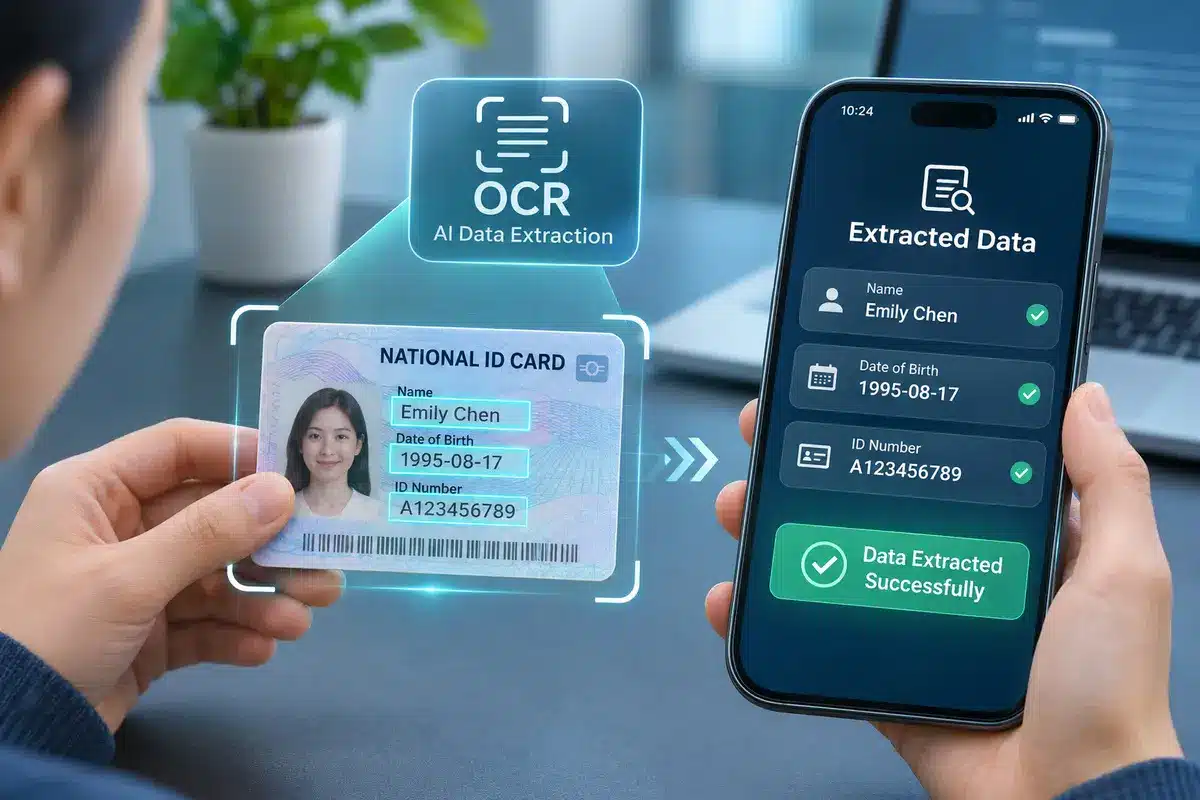
For example, a driver’s license may contain a full name, date of birth, address, license number, and expiration date. An OCR engine detects characters in the image. A document recognition system then connects those characters to the right field labels.
The output might look like a customer record with separate values for full_name, date_of_birth, document_number, and expiry_date. A business application can display these values for confirmation or use them in a permitted workflow.
OCR, document recognition, and identity verification are different
OCR converts visible characters into machine-readable text. Document recognition determines the document type and where specific information belongs. Identity verification goes further by assessing whether the claimed identity is supported by reliable evidence.
These distinctions matter. A system can read the text on a counterfeit card correctly. That does not make the card authentic. For higher-risk onboarding, businesses may need document authentication, checks against trusted sources, and biometric or human review.
How Does OCR Extract Data from Identity Documents?
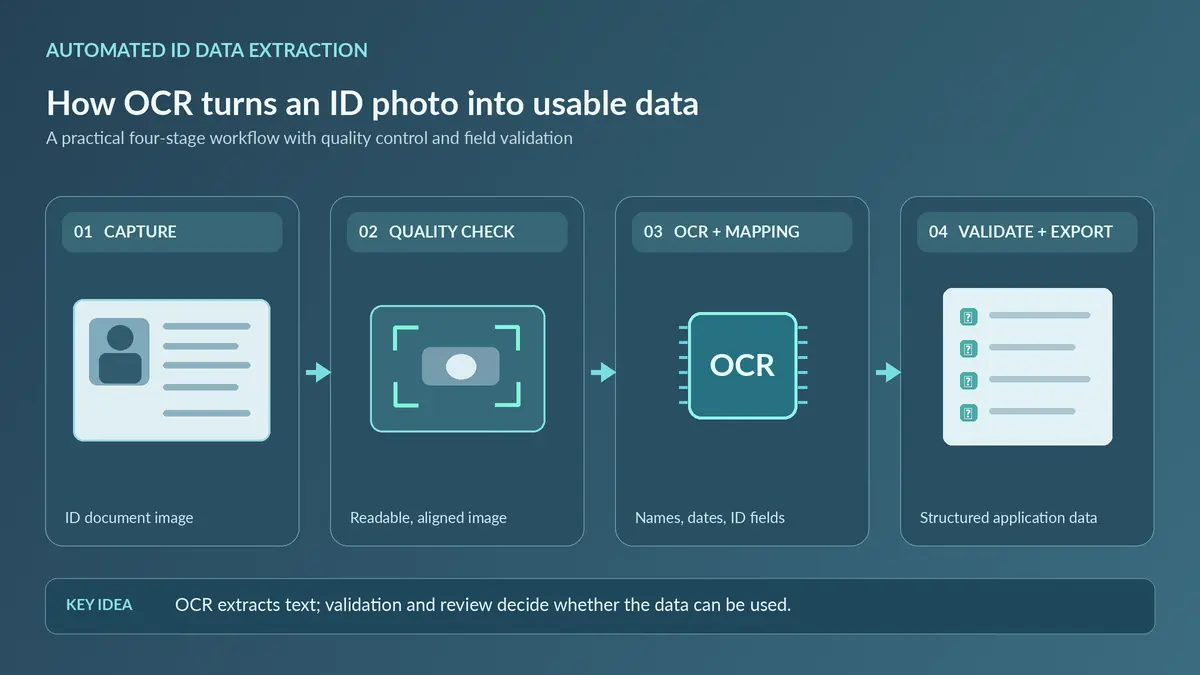
A reliable automated ID data extraction pipeline uses more than a single text-reading step. It combines camera guidance, image processing, text recognition, field mapping, and quality checks.
Step 1: Capture a clear document image
The user takes a photo or uploads an allowed image. The application can guide the camera so the entire document stays visible, well lit, and in focus. It should also detect glare, cut-off corners, or heavy blur before starting recognition.
Step 2: Detect and prepare the document
Computer vision identifies the document’s boundaries. The software may straighten its perspective, crop the background, and adjust the image to improve readability. This step helps the recognition engine work with a consistent view.
Step 3: Recognize text with OCR
The OCR engine identifies text within the visible region. Some document readers can also process a machine-readable zone (MRZ) on passports or supported barcodes on ID cards. Those sources may provide data that can be compared with the printed information.
Step 4: Map text to meaningful fields
Reading a series of characters is not enough. The application needs to know which value represents a surname, birth date, document number, or expiration date. Templates, layout analysis, and machine learning can support that mapping.
For a broader explanation of the difference between text reading and structured extraction, see Google Cloud’s document data extraction overview.
Step 5: Validate and return results
Finally, the application checks formats, required fields, and possible inconsistencies. It may return structured values through an SDK or API for review and downstream processing. Low-confidence or conflicting values should trigger a recapture or human review instead of silent acceptance.
7 Smart Ways OCR Reduces Manual Data Entry
Automated ID data extraction can improve a workflow even when some documents still require manual checks. The main value comes from reducing routine typing and directing attention to exceptions.
1. Pre-fill registration forms
A customer can scan an ID and review pre-filled fields instead of entering every detail. This is helpful on mobile devices, where long forms can be frustrating.
2. Reduce transcription mistakes
Manual copying can introduce spelling mistakes, missing characters, or reversed numbers. Automated capture reduces repeated transcription, although recognition errors remain possible.
3. Standardize field formats
A workflow can convert recognized dates into a consistent format and separate names into the fields expected by an application. Date formats, name order, and document conventions still need careful handling.
4. Speed up routine document intake
Employees do not need to retype all information from every readable ID. They can focus on incomplete images, unusual document layouts, and records that require a decision.
5. Support consistent data review
Structured output makes it easier to compare documents with submitted form data. Clear review screens also help users correct an incorrect field before submitting it.
6. Connect capture to existing systems
A validated data record can move into a customer management system, registration form, or approved KYC workflow through an integration layer. This reduces duplicate typing between tools.
7. Create a better audit trail
A well-designed system can record processing status, review decisions, and error reasons without putting full document details into general application logs. This helps teams investigate operational issues responsibly.
| Workflow area | Manual entry | OCR-assisted extraction |
|---|---|---|
| Data capture | Staff type visible details | System proposes recognized fields |
| Quality check | Often depends on an operator | Software can flag blur or glare |
| Field consistency | Depends on manual formatting | Rules can normalize common formats |
| Exceptions | Staff inspect most records | Staff review flagged records |
| Security | Requires access controls | Also requires protected image and result handling |
These are potential workflow advantages, not guaranteed performance results. Actual benefits depend on document quality, supported layouts, review rules, and integration design.
Practical Applications Across Industries
Banking, fintech, and customer onboarding
A bank or fintech application may use document capture to populate registration fields. A separate identity-proofing process can then assess whether the evidence and person meet the organization’s requirements. This can reduce unnecessary typing without replacing risk checks.
Travel and hospitality
Hotels and travel services may need to record document information when permitted by local law. OCR can help front-desk teams capture passport fields while still checking the document and applicable retention rules.
Telecommunications and online services
A service provider can use the same approach for account opening, SIM registration where required, or identity-related customer support. The workflow should collect only fields that are necessary for its legitimate purpose.
Healthcare and public services
Some organizations handle identification documents during registration. Data extraction may reduce administrative work, but privacy, accessibility, and human review are particularly important when errors could affect access to services.
How to Integrate ID Data Extraction into an Application
Developers should start with the workflow rather than the OCR engine alone. A successful implementation defines what information is needed, what happens when extraction fails, and how sensitive data is protected.
Define the required fields and document coverage
List the documents you must support, such as passports or national ID cards. Specify required fields and whether your application needs an MRZ, barcode, or visual-zone text. Do not assume that every document type contains the same fields.
Choose an SDK and test the capture experience
Evaluate platform compatibility, supported document types, integration options, and image-quality guidance. Test on the actual devices and lighting conditions used by customers.
MiniAiLive’s ID Document Recognition solution describes OCR-based extraction alongside document verification. Its ID Document Recognition SDK documentation also describes capture, text extraction, MRZ reading, and document field processing. Developers should confirm current platform support and licensing for their environment.
Build an explicit review-and-confirm step
Show recognized fields to the user or authorized reviewer. Use format validation, cross-field consistency checks, and appropriate confidence rules. If a result is uncertain, let the user retake the image or correct the data through a controlled workflow.
Connect the structured output safely
Map the extracted values to your application schema. Apply input validation on the server, use authenticated requests, and avoid retaining the original image longer than necessary. Keep raw OCR text separate from authoritative customer records until validation succeeds.
Teams handling passports can also consult MiniAiLive’s passport OCR SDK guide for related document-reading concepts. Treat any sample integration code as a starting point, not proof that it matches your installed SDK version.
Accuracy, Privacy, and Fraud Prevention
Automated ID data extraction is useful, but it cannot remove every source of error. Image quality, worn documents, glare, unusual fonts, and unsupported languages can affect recognition. A system should measure field-level accuracy using documents that represent its real users, not only ideal sample images.
Separate text accuracy from document authenticity
A correctly read name does not prove that the ID was issued legitimately. Depending on the risk level, additional checks may include document security features, MRZ consistency, trusted data sources, document liveness, or comparison with the presenting person.
The NIST SP 800-63A-4 identity proofing guidance distinguishes evidence validation from verification of the applicant. That is an important design principle for systems used to establish identity.
Protect uploaded documents and personal data
Identity documents contain sensitive personal information. Use encryption in transit and at rest where appropriate, role-based access, short retention periods, and documented deletion processes. Avoid writing passport numbers or full images into diagnostic logs.
Uploads also create application-security risks. The OWASP File Upload Cheat Sheet recommends layered checks for file types, content, storage, and other upload controls. Apply these alongside privacy requirements and your organization’s security policies.
Finally, offer a human-assisted route for unclear documents or failed automated checks. This helps avoid excluding legitimate users because their ID image is difficult for the software to read.
Frequently Asked Questions and Conclusion
What information can OCR extract from an ID?
Depending on the document and supported recognition features, it may extract a person’s name, date of birth, document number, expiration date, address, nationality, or MRZ data. Not every document contains all these fields.
Does automated ID data extraction replace KYC verification?
No. OCR reads document information. KYC and identity proofing can also require document authenticity checks, screening, identity verification, and additional controls appropriate to the applicable rules.
Can OCR process damaged or blurry ID cards?
Sometimes, but poor image quality increases the chance of missing or incorrect characters. Good capture guidance and a recapture option are safer than accepting uncertain results without review.
Is it possible to integrate ID extraction into a mobile app?
Yes. An app can use a compatible mobile SDK or a supported server-side integration. The right approach depends on platform support, privacy requirements, connectivity, and how you want to handle review and storage.
How should businesses evaluate extraction accuracy?
Test field-level results on a representative and lawfully collected document sample. Track error types, rejected images, manual correction rates, and performance across the document types your users actually submit.
Conclusion
Automated ID data extraction turns document images into structured information and can reduce the effort of manual data entry. The strongest implementations combine OCR with image-quality checks, field validation, responsible data handling, and human review when necessary.
If you are planning an ID scanning workflow, explore MiniAiLive’s ID Document Recognition solution and SDK documentation to assess whether their current capabilities fit your application’s requirements.